 +44(0)28 9032 2228


-
 3/3/2025
Microsoft 365 Training Courses now available inc Belfast, Omagh, Derry, Newry and Throughout Northern Ireland -
 3/3/2025
Data Visualisation & Presentation Techniques with Mullan IT Training -
 3/3/2025
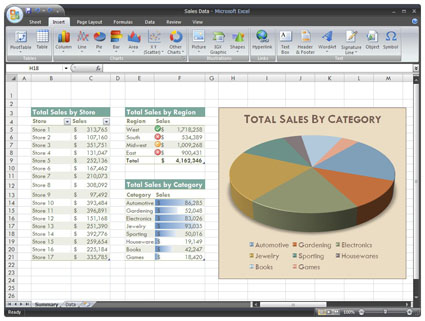
Hot Course - 2 Day Advanced Microsoft Excel Course Training - CALL NOW TO BOOK -
 3/3/2025
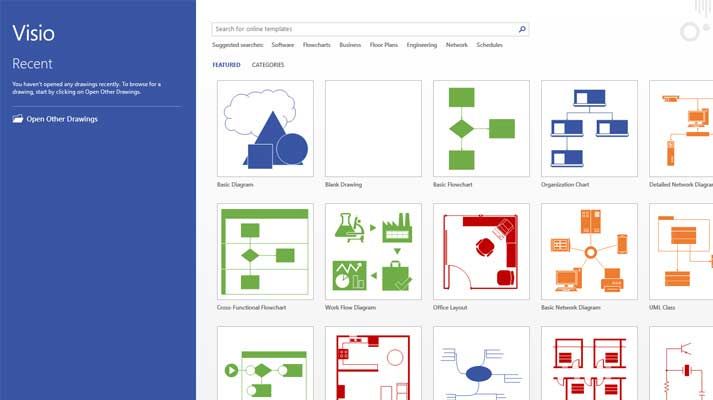
HOT COURSE - Intro to Microsoft Visio Training in Belfast Northern Ireland OR Virtually - CALL NOW to secure a place on this course -
30/4/2025
Microsoft Visio Training from Belfast Northern Ireland - Maximise the potential of the Visio application -
 14/4/2025
CLASSROOM & ONLINE Power BI Level 1 course -
 3/3/2025
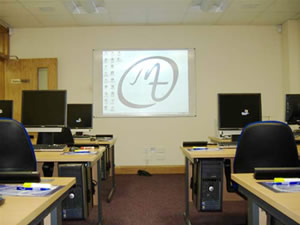
IT/Computer Room Hire in Belfast City Centre (Opposite Europa Hotel) - Call now to book -
 31/3/2025
Microsoft 365 training courses in Word, Excel, Access, Outlook, Powerpoint, Sharepoint in Belfast and Omagh Northern Ireland -
 25/3/2025
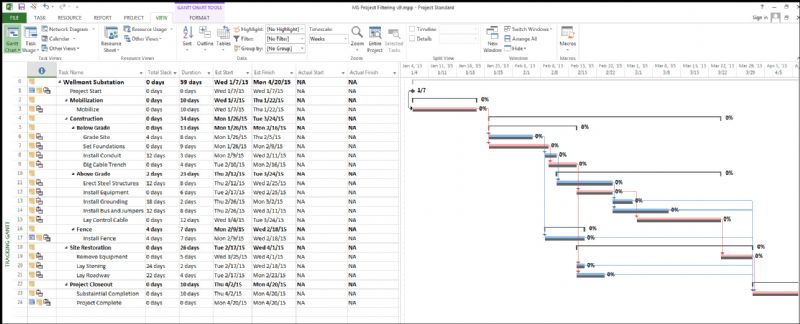
Introduction to Microsoft Project Training from Belfast Northern Ireland - Classroom Based Training & Via Our Online Classrooms -
 6/5/2025
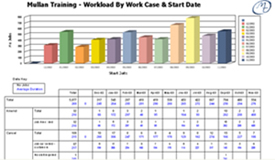
Intro to Crystal Reports Training from Belfast Northern Ireland - Virtual, Online - Learn how to create powerful and dynamic reports, presenting your data in an attractive format -
 3/3/2025
CITB - The Construction Industry Training Board have included Mullan Training on their Approved List We deliver Trainings in Belfast Northern Ireland OR On Customer's Own Premises -
 3/3/2025
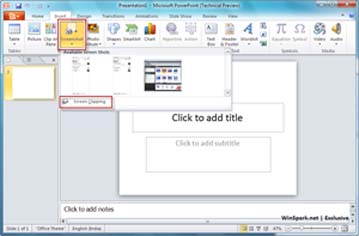
Intro to Microsoft PowerPoint Training from Belfast Northern Ireland - Online Training Course -
 20/3/2025
1 day Adv Microsoft Excel CourseTraining in Belfast Northern Ireland OR On your Own Premises - Places Available - Call Now to Book -
 14/4/2025
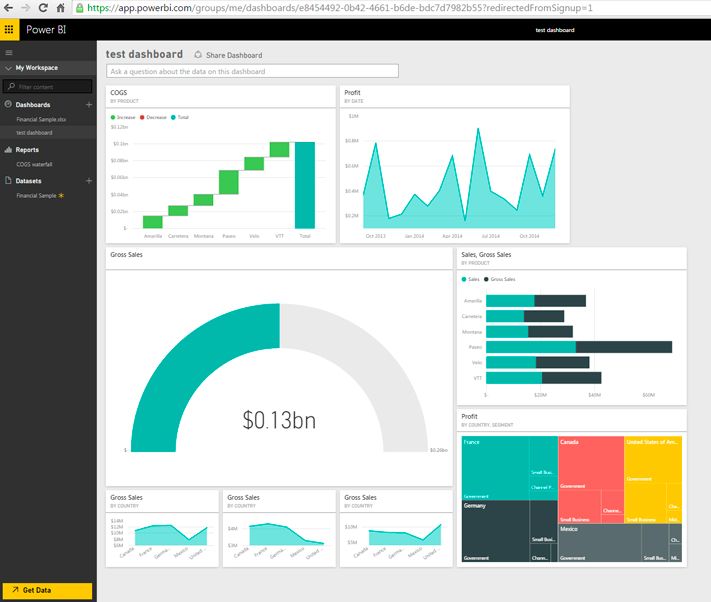
New Course - Microsoft Power BI Introduction training from Belfast Northern Ireland - Classroom & Online Training -
 3/3/2025
Power BI Paginated Report Builder -
 17/4/2025
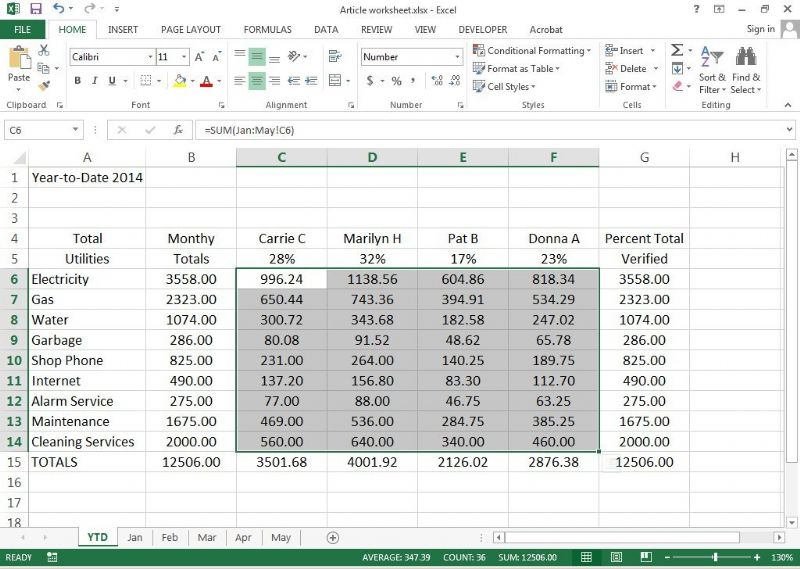
HOT COURSE - Introduction to Microsoft Excel Training in Belfast Northern Ireland OR On your Own Premises - Call NOW to Book -
 3/3/2025
Need to Produce and Deliver Professional Presentations? Book NOW on our Advanced Microsoft PowerPoint course Training in Belfast Northern Ireland OR On your Own Premises - Limited places available -
 26/3/2025
Microsoft Sharepoint Introduction Training Course in Belfast NI
Upgrading to Excel 2013
Enquire About This Course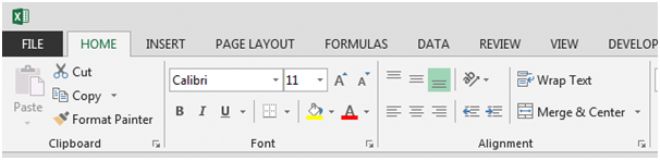
Having worked with applications in Microsoft Excel 2003/2007/2010, students must also get to know the new interface in the latest release of the application.
Delegates will learn how to
- Explore the general environment of Excel 2013
- Use the key new features of Excel 2013
Course Outline
Using the Excel 2013 Environment
- Excel Start Screen
- Templates
- The Ribbon (Customization and Developer Tabs)
- Tabs, Groups, Commands
- Dialog Box Launcher
- Quick Access Toolbar
- File Tab (Backstage View)
- Excel Options
- Views and Zooming
- Keyboard Shortcuts
- Workbook Windows
- Document Inspector
- File Formats, Compatibility and Versions
- Integration (SharePoint / SkyDrive)
- File Types
Excel General Features
- Increased Capacity
- Mini Toolbar
- Live Previews
- Galleries
- Print Preview / Page Layout View
- Cut, Copy and New Paste Options
- Flash Fill
- Digital Signature
- Equations
Formulas and Functions
- Formula Bar
- AutoComplete
- Name Manager
- New Functions
Worksheet Formatting
- Cell Styles
- Conditional Formatting
Data Management
- Sort and Filter Data
- Create and Modify Excel Tables
- Use Slicers with Tables
Data Analysis
- Use Quick Analysis Tool
- Create Pivot Tables and Charts
- Use Slicers with Pivot Tables
Charts and Graphics
- Create and Modify Charts
- Use Recommended Charts
- Create Sparklines
- Insert SmartArt
- Insert Online Pictures
- Insert Screenshots
- Use Themes
Click here to download:
Enquire About This Course
-
3/3/2025
Microsoft 365 Training Courses now available inc Belfast, Omagh, Derry, Newry and Throughout Northern Ireland -
3/3/2025
CITB - The Construction Industry Training Board have included Mullan Training on their Approved List We deliver Trainings in Belfast Northern Ireland OR On Customer's Own Premises -
3/3/2025
IT/Computer Room Hire in Belfast City Centre (Opposite Europa Hotel) - Call now to book -
14/4/2025
New Course - Microsoft Power BI Introduction training from Belfast Northern Ireland - Classroom & Online Training -
17/4/2025
HOT COURSE - Introduction to Microsoft Excel Training in Belfast Northern Ireland OR On your Own Premises - Call NOW to Book -
3/3/2025
HOT COURSE - Intro to Microsoft Visio Training in Belfast Northern Ireland OR Virtually - CALL NOW to secure a place on this course -
3/3/2025
Need to Produce and Deliver Professional Presentations? Book NOW on our Advanced Microsoft PowerPoint course Training in Belfast Northern Ireland OR On your Own Premises - Limited places available -
3/3/2025
Hot Course - 2 Day Advanced Microsoft Excel Course Training - CALL NOW TO BOOK -
3/3/2025
Power BI Paginated Report Builder -
3/3/2025
Intro to Microsoft PowerPoint Training from Belfast Northern Ireland - Online Training Course -
3/3/2025
Data Visualisation & Presentation Techniques with Mullan IT Training -
31/3/2025
Microsoft 365 training courses in Word, Excel, Access, Outlook, Powerpoint, Sharepoint in Belfast and Omagh Northern Ireland -
25/3/2025
Introduction to Microsoft Project Training from Belfast Northern Ireland - Classroom Based Training & Via Our Online Classrooms -
6/5/2025
Intro to Crystal Reports Training from Belfast Northern Ireland - Virtual, Online - Learn how to create powerful and dynamic reports, presenting your data in an attractive format -
30/4/2025
Microsoft Visio Training from Belfast Northern Ireland - Maximise the potential of the Visio application -
20/3/2025
1 day Adv Microsoft Excel CourseTraining in Belfast Northern Ireland OR On your Own Premises - Places Available - Call Now to Book -
14/4/2025
CLASSROOM & ONLINE Power BI Level 1 course -
26/3/2025
Microsoft Sharepoint Introduction Training Course in Belfast NI